
Running containers on a Raspberry Pi is a great way to run lightweight, isolated applications without the overhead of installing them directly on Raspberry Pi OS. Here, we'll guide you through the steps to install Docker and Docker Compose on your Raspberry Pi, ensuring that you can take full advantage of containerized applications.
Before installing any new software, it's always a good practice to update and upgrade your existing packages:
sudo apt update
sudo apt upgrade -yDocker provides an installation script that simplifies the process of getting Docker on Raspberry Pi. The script also installs Docker Compose as a plugin.
# Download and run Docker installation script
curl -fsSL https://get.docker.com -o get-docker.sh
sudo sh get-docker.sh

# Add your user to the 'docker' group
sudo usermod -aG docker $USER
Log out and back in (or run newgrp docker) so the group change takes effect. Then verify that Docker was installed correctly:
docker --versionDocker recommends the script for testing and development. For devices in production, install Docker from Docker's apt repository instead, as described in Docker's installation guide.
Docker Compose is included as a plugin, so there is nothing extra to install. The command is docker compose (with a space), not the older docker-compose. Confirm that it works:
docker compose versionIf the command is not found, install the plugin from Docker's repository, which the script has already added:
sudo apt install -y docker-compose-pluginTo make sure that both Docker and Docker Compose are working as expected, let's run a test container:
# Pull and run a basic 'hello-world' Docker image
docker run --rm hello-world
The output should indicate that Docker is working correctly. The --rm flag removes the container again when it exits.
For Docker Compose, create a simple docker-compose.yml file:
nano docker-compose.ymlPaste the following content:
docker-compose.yml
services:
  hello-world:
    image: hello-world
Older guides start the file with a version: line. Docker Compose no longer uses it and shows a warning if it is there.
Now, run the composition:
docker compose upYou should see Docker Compose starting the hello-world service and the same hello message from Docker.
If you wish to clean up after the test, remove the container created by Docker Compose and the downloaded image:
docker compose down
docker rmi hello-worldBy following these steps, you've successfully installed Docker and Docker Compose on your Raspberry Pi. Now, you're all set to explore the world of containerized applications with Docker on Raspberry Pi OS. With the rising popularity of using Docker on Raspberry Pi, the opportunities for development and deployment are vast. Whether for home automation, IoT projects, or lightweight web servers, you've unlocked a versatile tool in your Raspberry Pi toolkit.
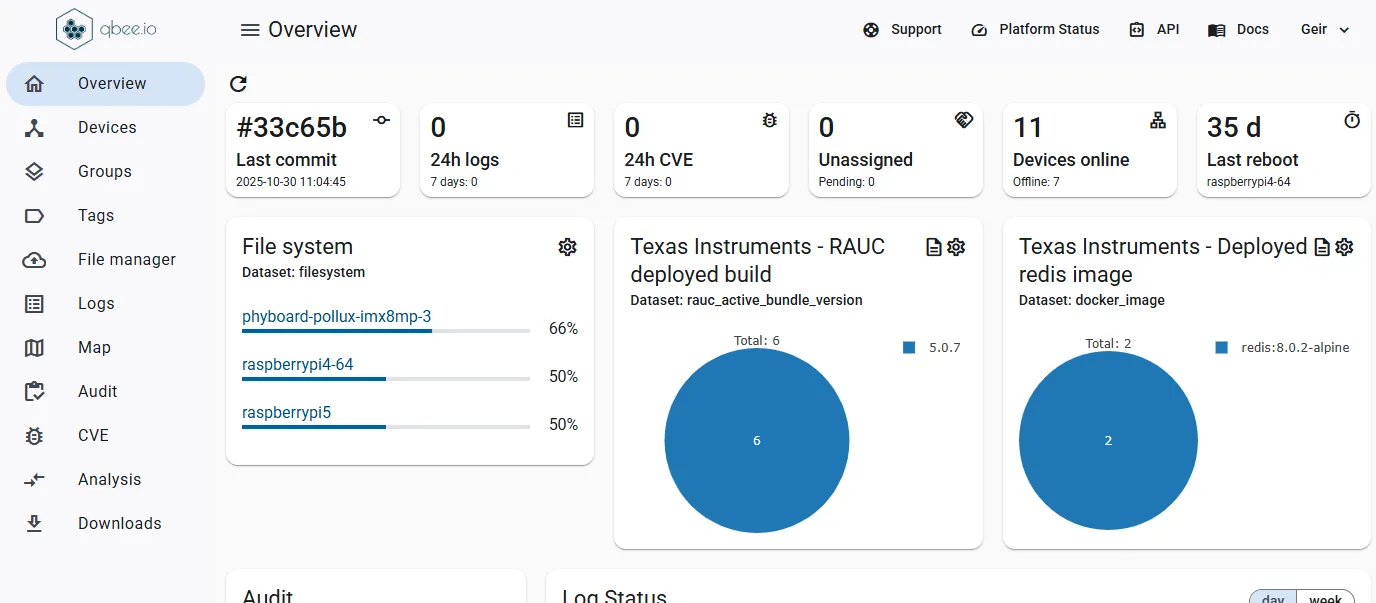
If you want to use containers on a whole fleet of devices you might need further container automation. Here we can help you with automated installations but also very granular and simple docker-compose automation.